Enhanced Shading: add a new dimension to your colors
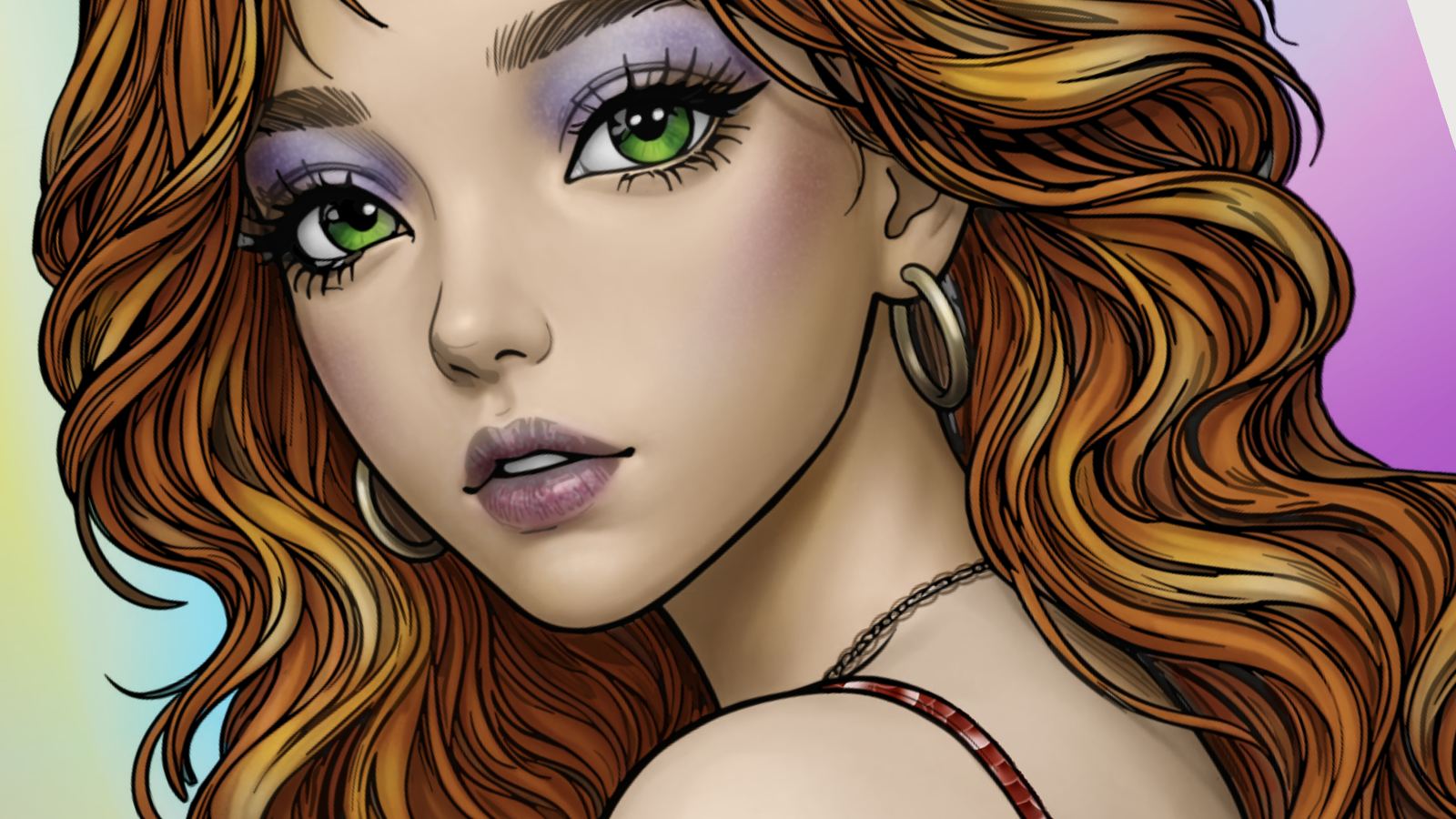
Sometimes, a shadow changes the feel of an entire illustration. A face gains volume, the shapes of the hair come into focus, and colors take on a different depth.
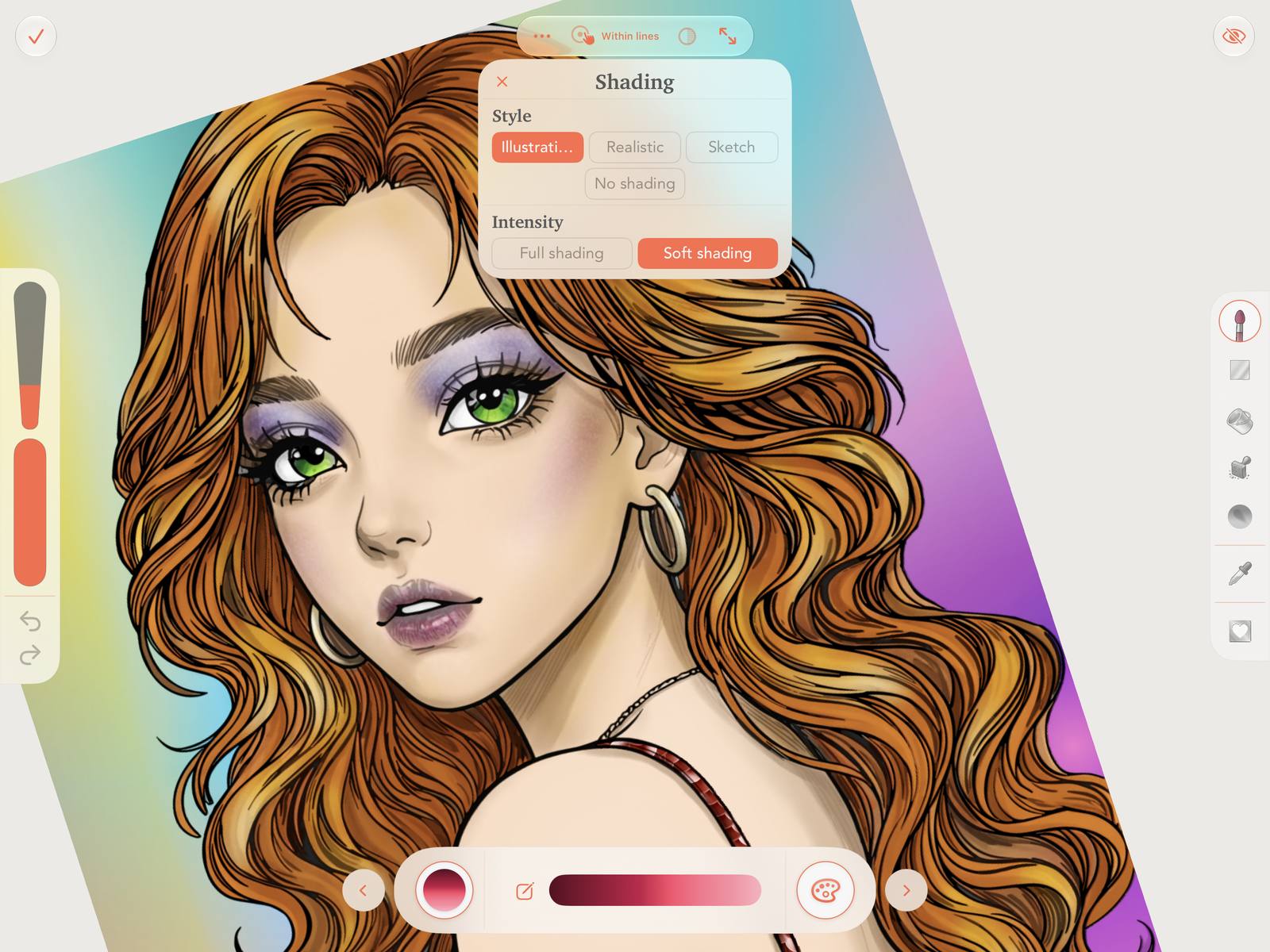
With Enhanced Shading in PINTA, you can explore those nuances through different shading styles and intensities. Use it to give your artwork a special finish or as a reference while you create your own shadows. You decide how much of a role it plays, and you can change it at any time.
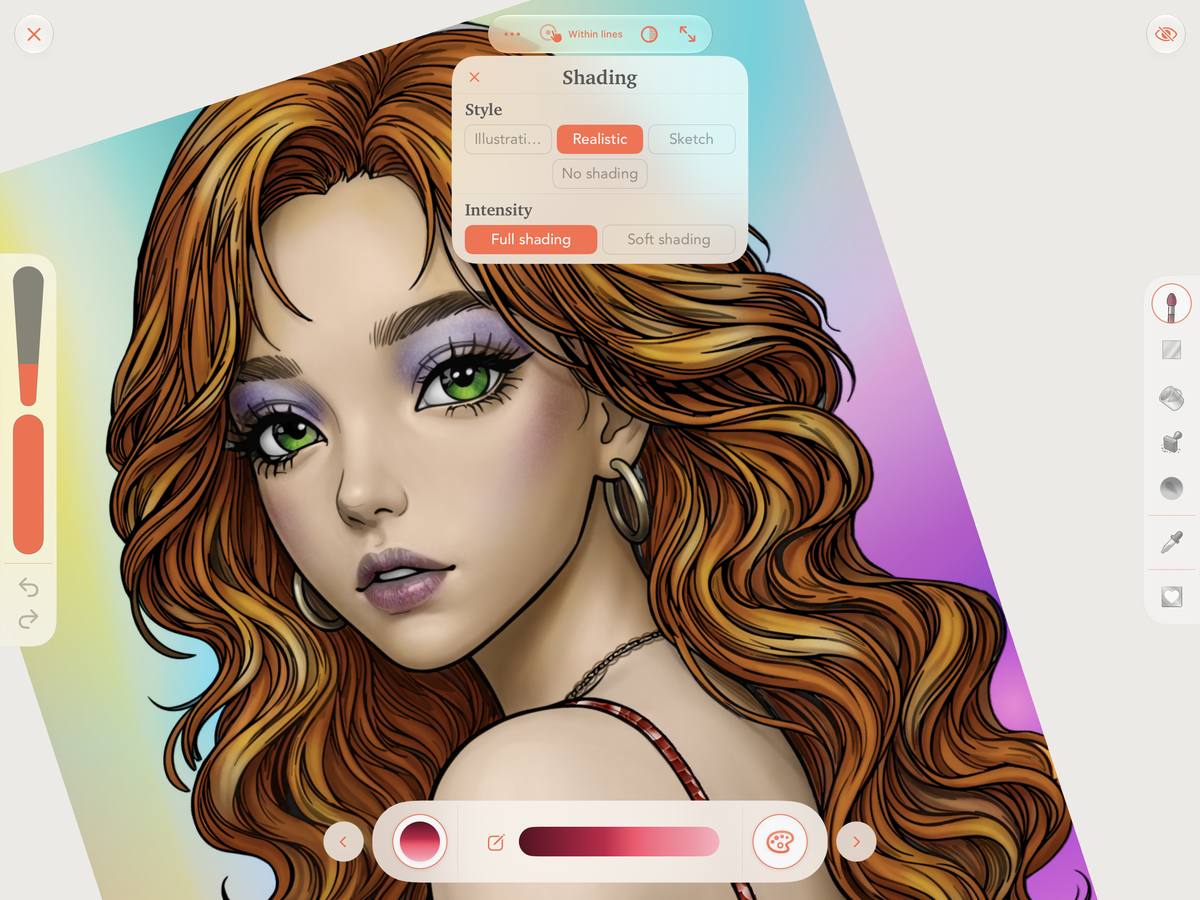
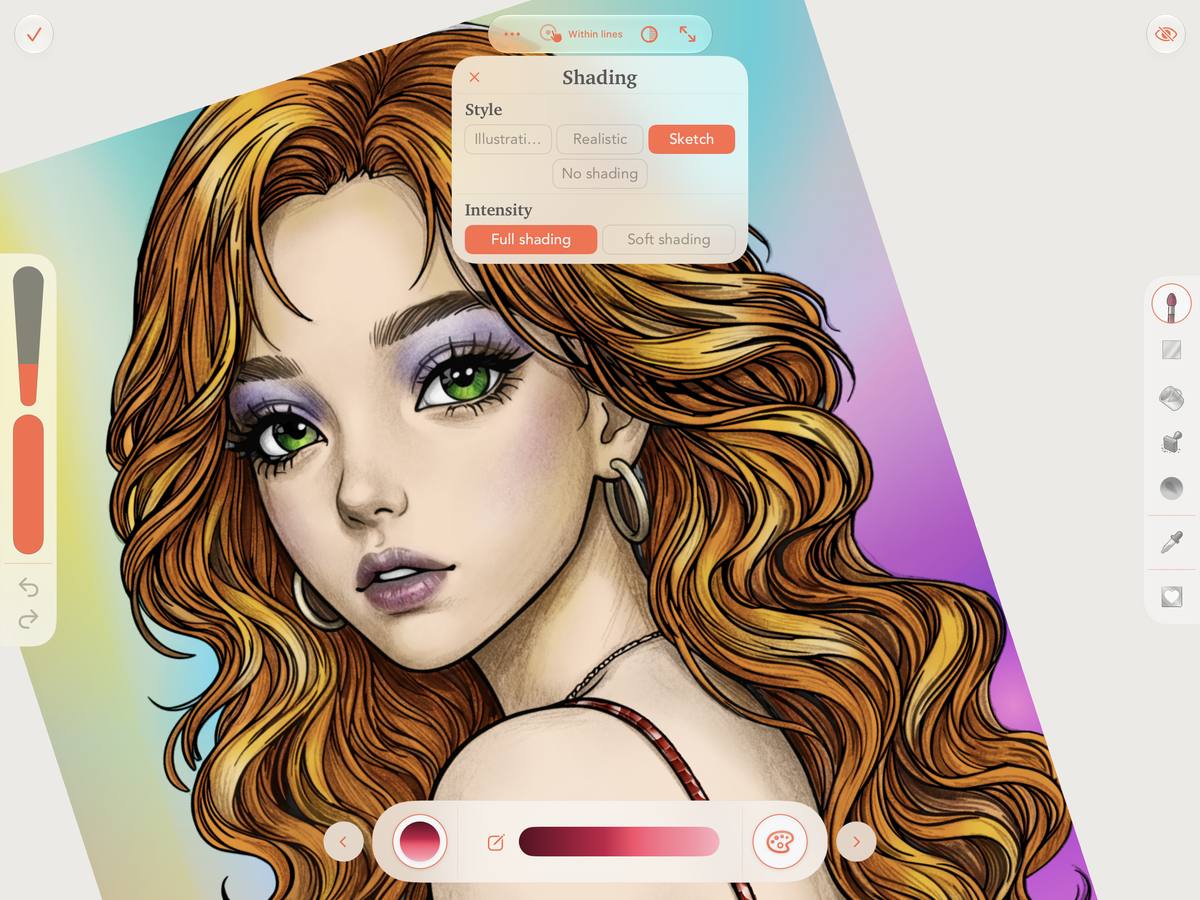
Three styles to explore
The way you shade an illustration can change its whole mood. Enhanced Shading lets you choose from three styles:
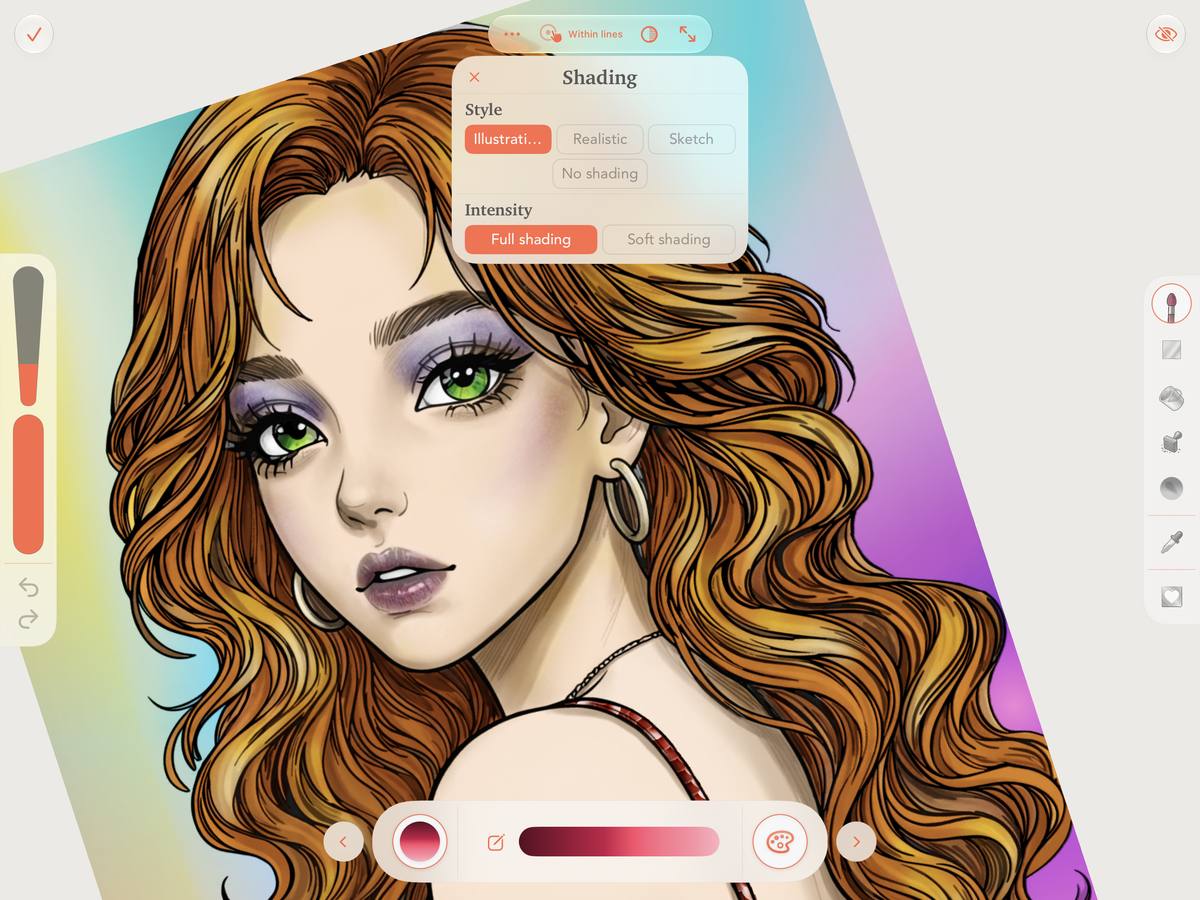
- Illustration: illustration-style shading that adds definition and volume.
- Realistic: a finish that emphasizes depth and the contours of each form.
- Sketch: shading with a sketch-like character for a more hand-drawn feel.
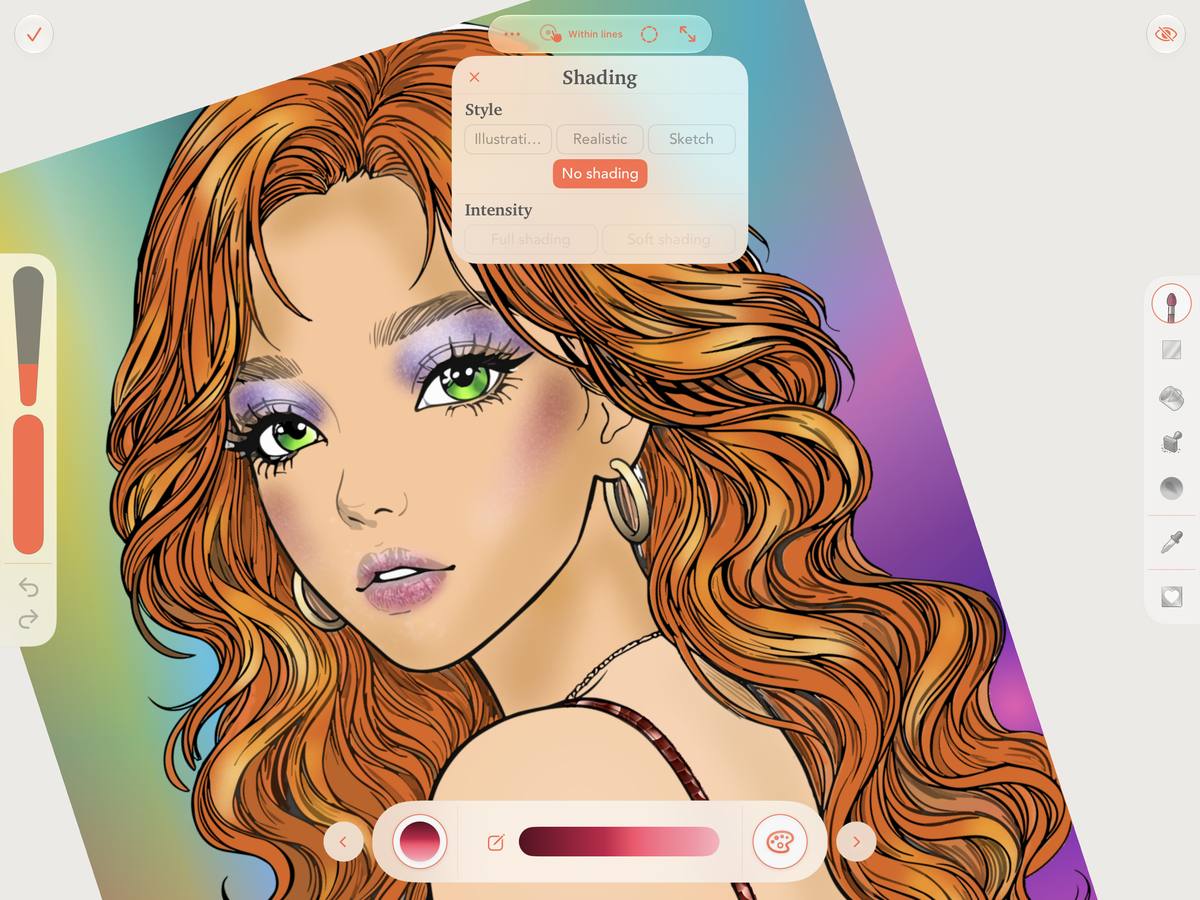
Prefer the familiar look? Select No Shading to work with just the outlines and your colors, without the added shading.
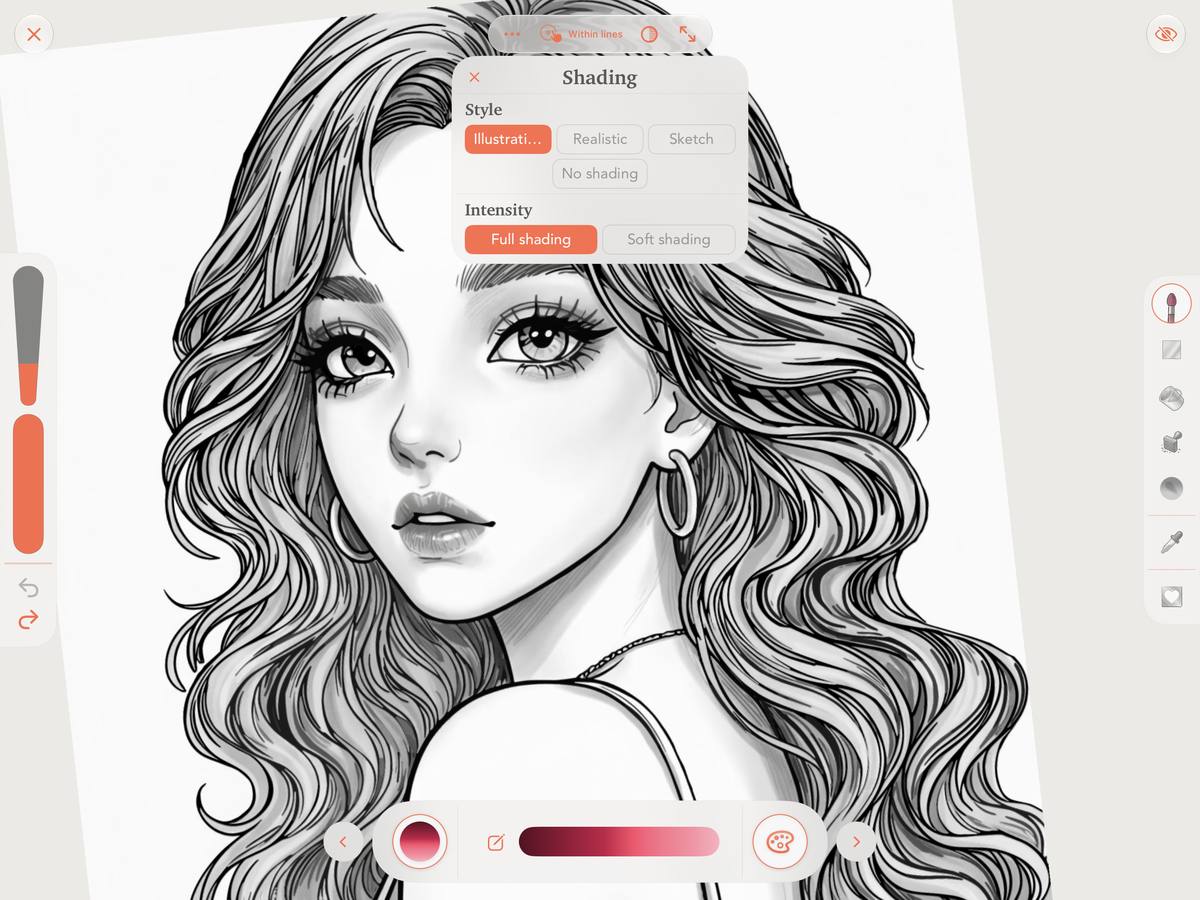
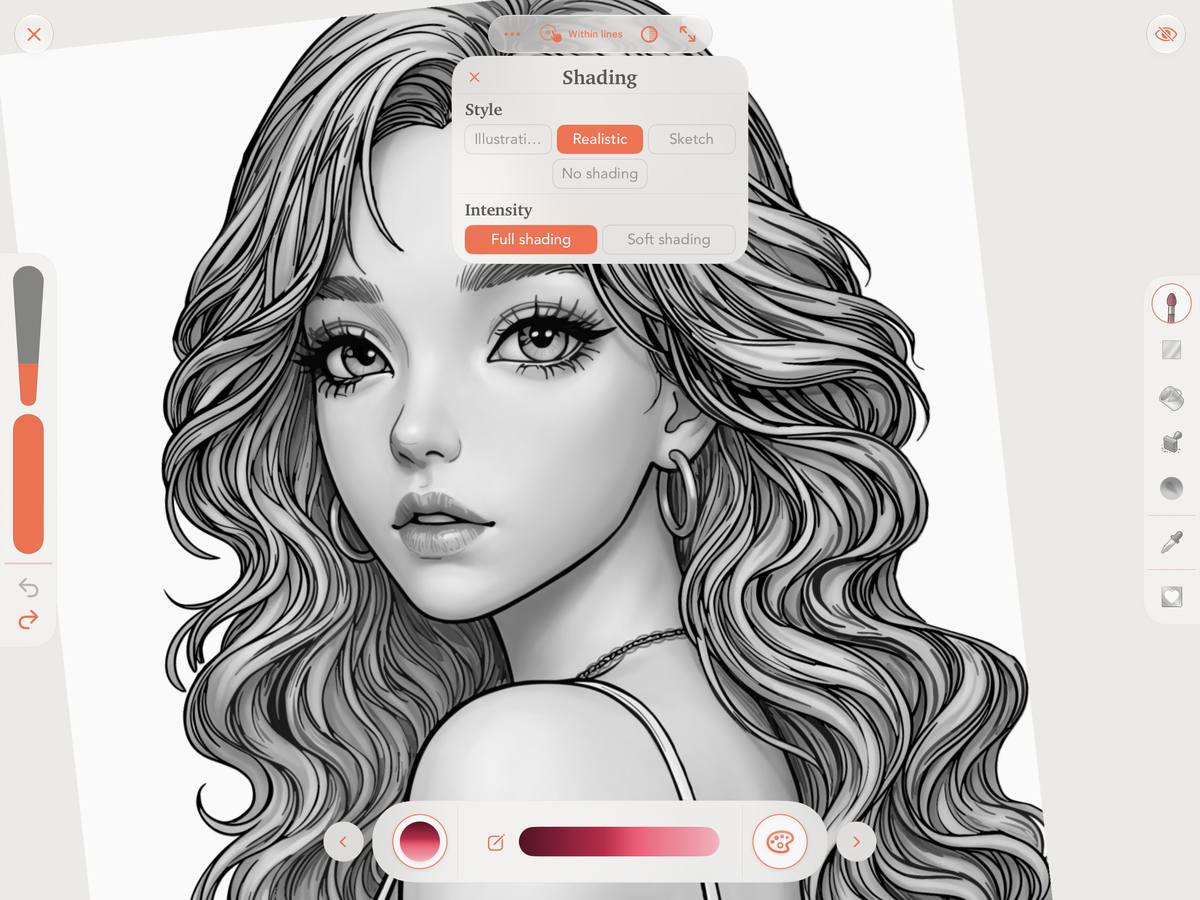
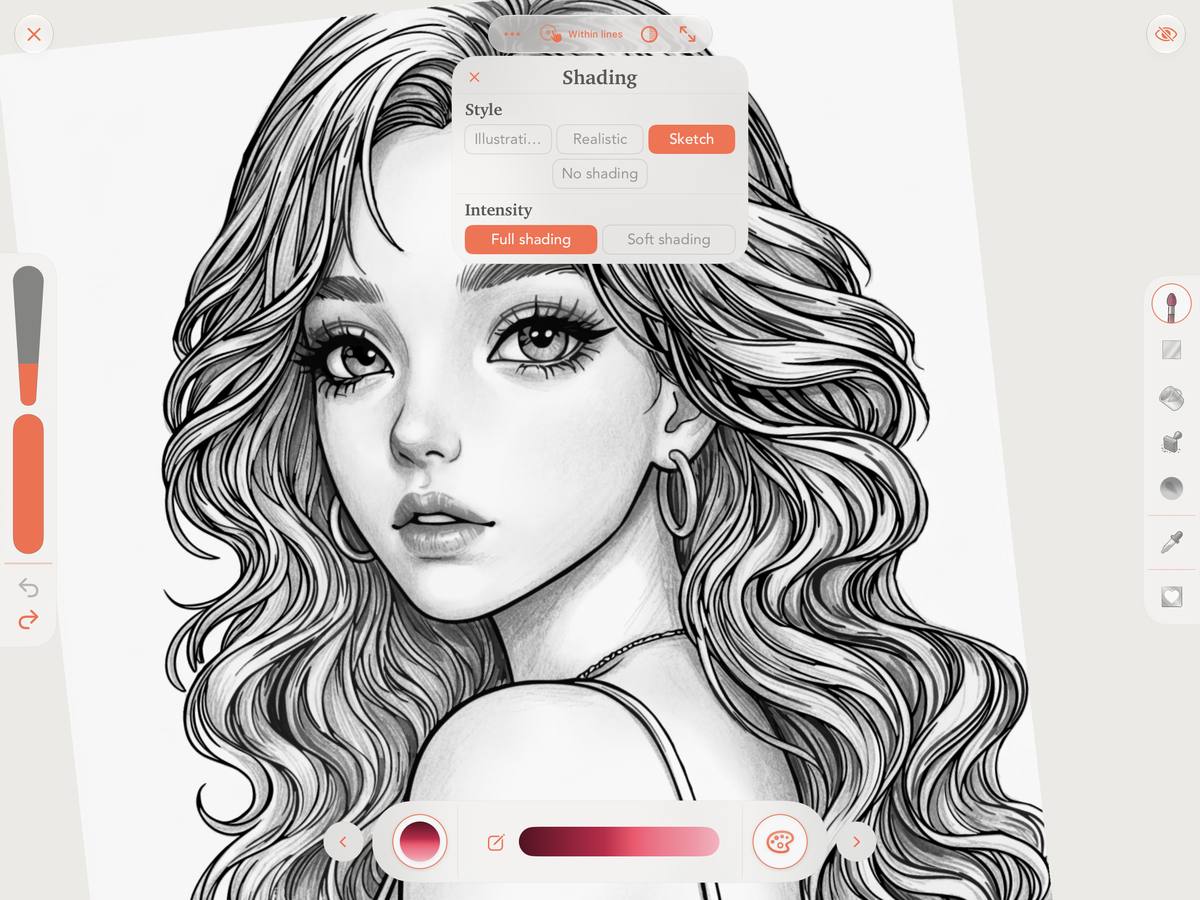
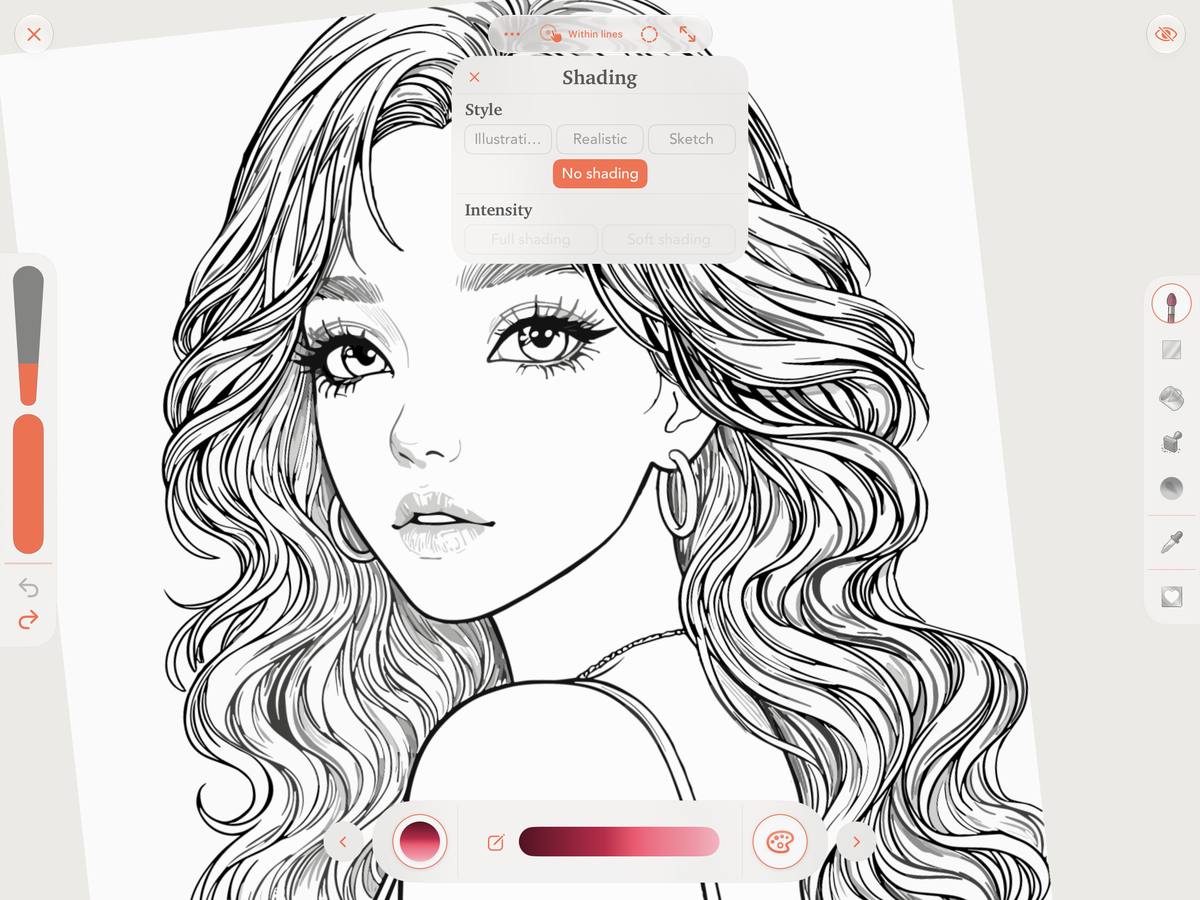
A soft touch or stronger shadows
Each style has two intensity levels:
Full Shading displays the shading at full intensity for a more pronounced effect.
Soft Shading offers a gentler version when you want a subtle finish.
Try both with the same colors and see how the result changes. Choose the style you like best and adjust its intensity to suit your illustration.
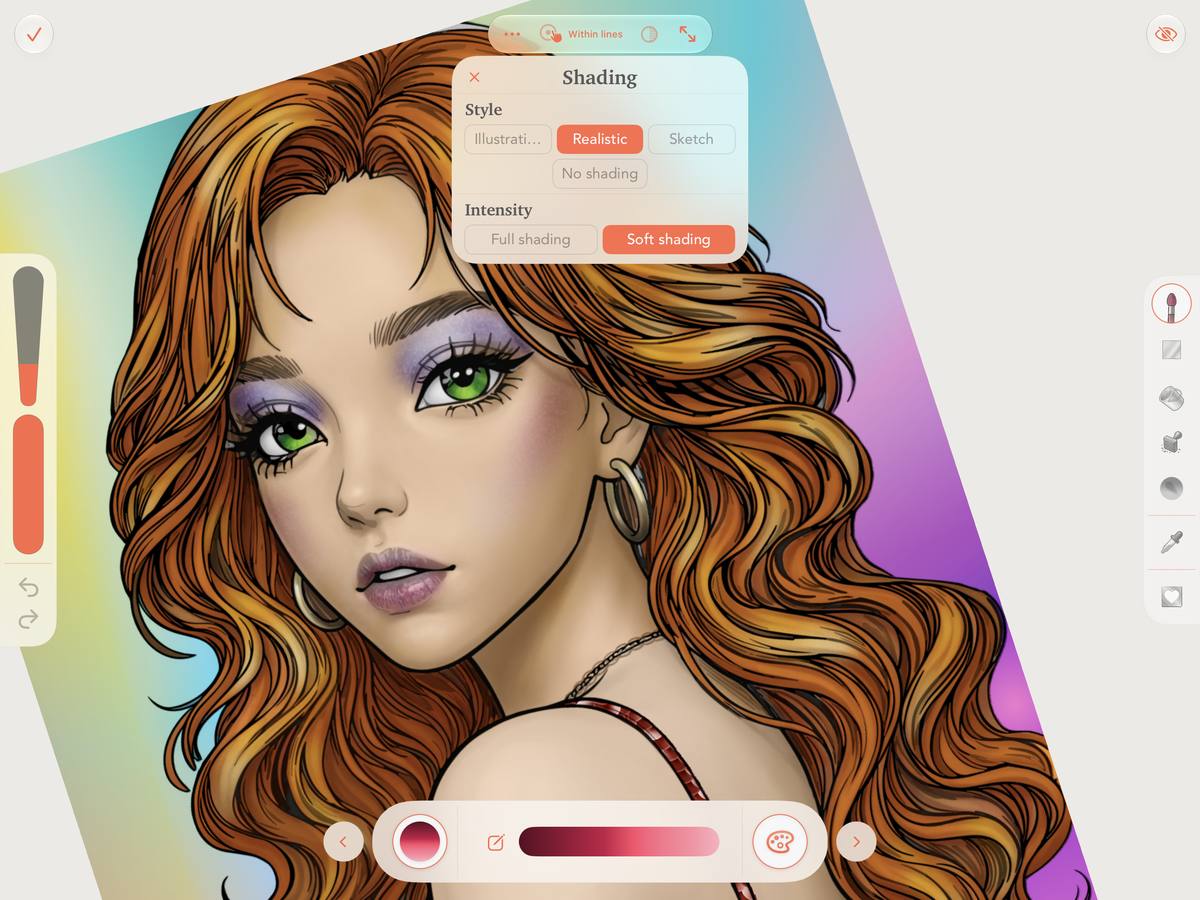
How to use Enhanced Shading
1. Choose a style before you start
Open a compatible template and explore the shading options in the preview. You can start with Illustration, Realistic, Sketch, or No Shading.
Once you find an option that inspires you, tap Color to open the canvas.
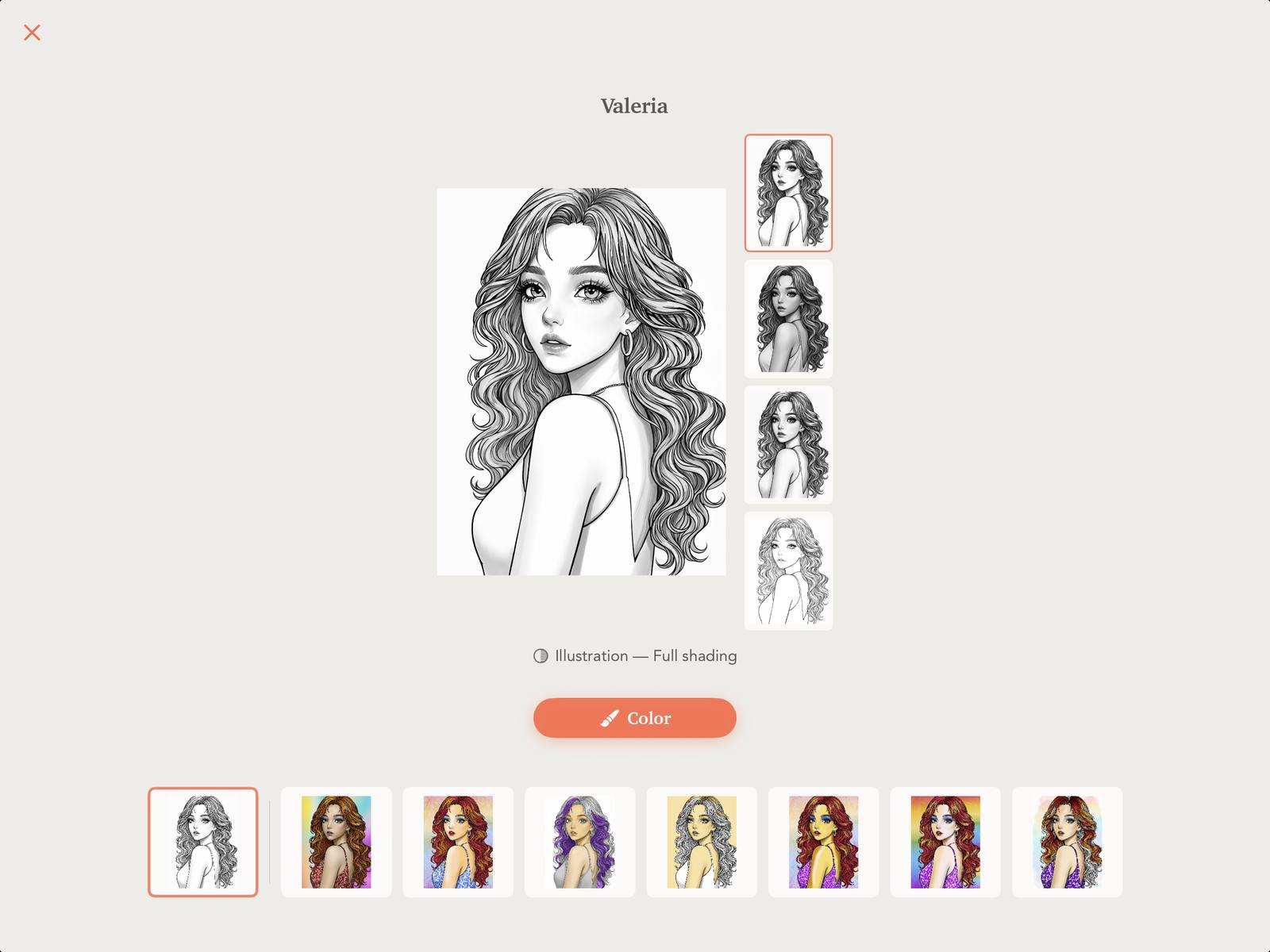
2. Color and experiment
Once you’re on the canvas, color your way. The shading can help you see how your colors work with the volume and shapes of the drawing.
You don’t need to settle on the final look right away: you can discover it as you paint.
3. Change the shading on the canvas
Open the Shading menu in the canvas view to switch styles and choose between Full Shading and Soft Shading.
You can also select No Shading to see your work without the effect. These options are available while you color, so you can compare different finishes as you go.
A finish for your artwork, a guide for your shadows
Enhanced Shading can also support you as you develop your own approach to shading.
Turn it on to observe where the darker areas fall and how they help define the face, hair, or details of the illustration. Use that reference to guide the shadows you paint yourself.
Then turn it off to view your work without the added shading and keep adjusting it to your liking.
You can leave it on as part of the finished look, use it as a guide for part of the process, or color with just the outlines from the start. There’s room for every way of creating.
Coming to more templates
We’re expanding the catalog of templates that support Enhanced Shading so more and more designs can benefit from this feature, with the goal of bringing it to the entire catalog.
Open a compatible template, choose your colors, and try different combinations. Soft shadows, a stronger finish, or just your own strokes: find the version you like best.
Let's color
Enhanced Shading is in PINTA for iPhone, iPad, Mac and Android. Open a compatible template and try it out.