
Bring Your Own Coloring Pages to Pinta
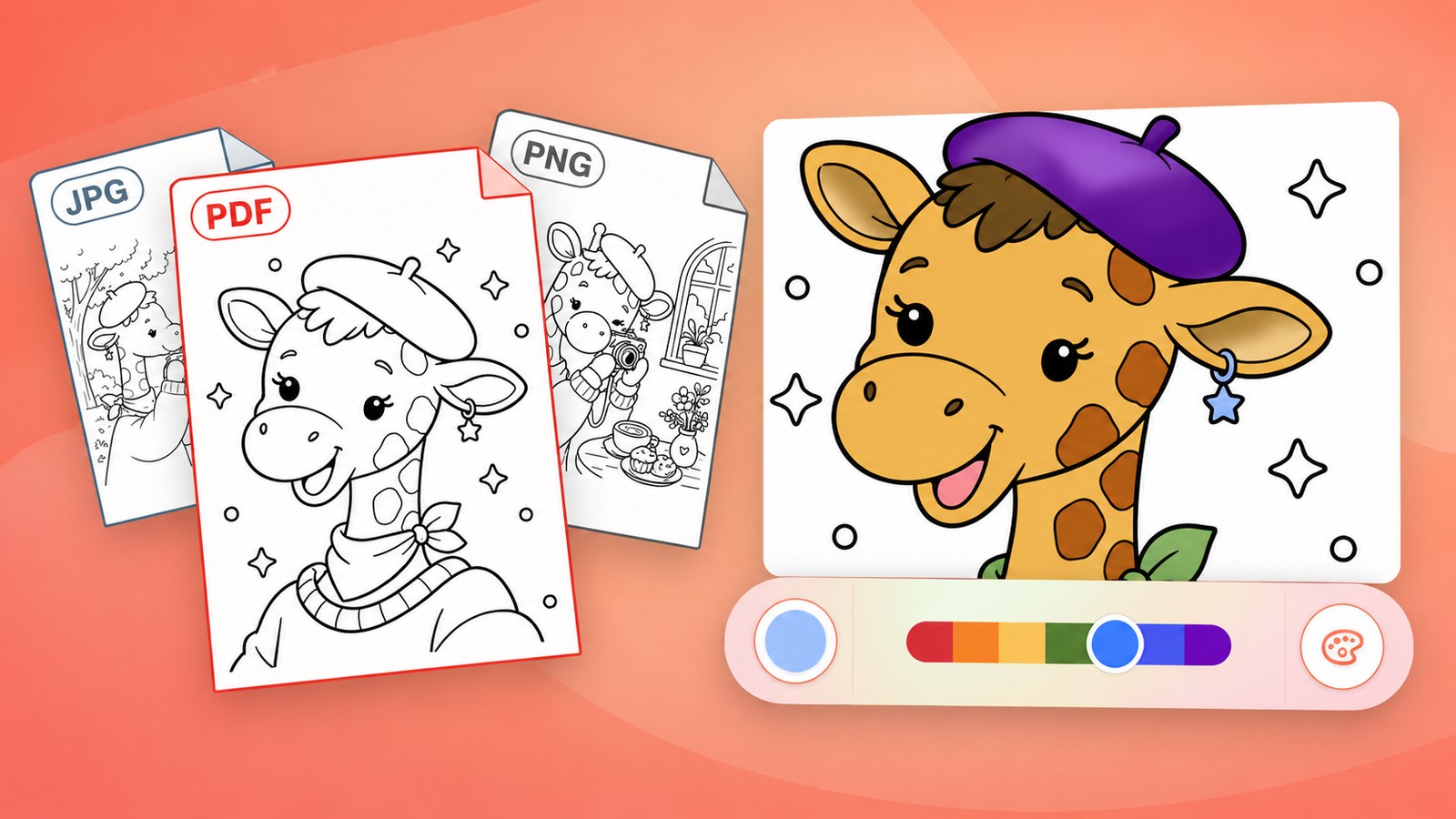
Your favorite artists. The digital coloring pages you own. Now, a new way to enjoy them in Pinta.
You’ll be able to import your own PDFs and coloring page images, choose a page, and start coloring right in the app. No printing needed. Coming October 25
From a digital download to a coloring session
Buying digital coloring pages from an artist you love is a lovely way to build a collection of your own. But getting from the download to the coloring can involve a printer, paper, or setting up layers in a drawing app.
This update brings those pages into Pinta. Open your file, choose the illustration you want, and use the coloring tools you already know. There’s no need to prepare layers before you begin.
Fill an area with a tap, paint with realistic watercolor and oil brushes, or experiment with gradient brushes and bucket fills. Assistance to stay within the lines works with your imported pages too, so you can spend your time choosing colors and enjoying the drawing.
Pinta’s catalog will still be there whenever you want something new to color. Importing gives you another choice: the pages you’ve collected yourself.
What can you import?
Pinta supports PDF, PNG, JPG, and HEIC files.
For a PDF with several pages, you’ll see a preview of each page and choose the one you want to color. There’s no need to split the PDF into separate files first. A single-page PDF or an image goes straight to the template preview.
Before you begin, have your coloring file saved somewhere you can access through your device’s file picker. If you’ve just downloaded a purchase, locate the PDF or image you want to use.
How to import a PDF coloring page
Here’s the process, using a six-page PDF of our dear Hazel as an example—the newest member of Pinta’s Cozy Friends club, debuting in just a few days. The screenshots show the iPad version of Pinta.
1. Open Import Template
On Pinta’s Home screen, tap Import Template under Quick Actions, then choose Import from Files.


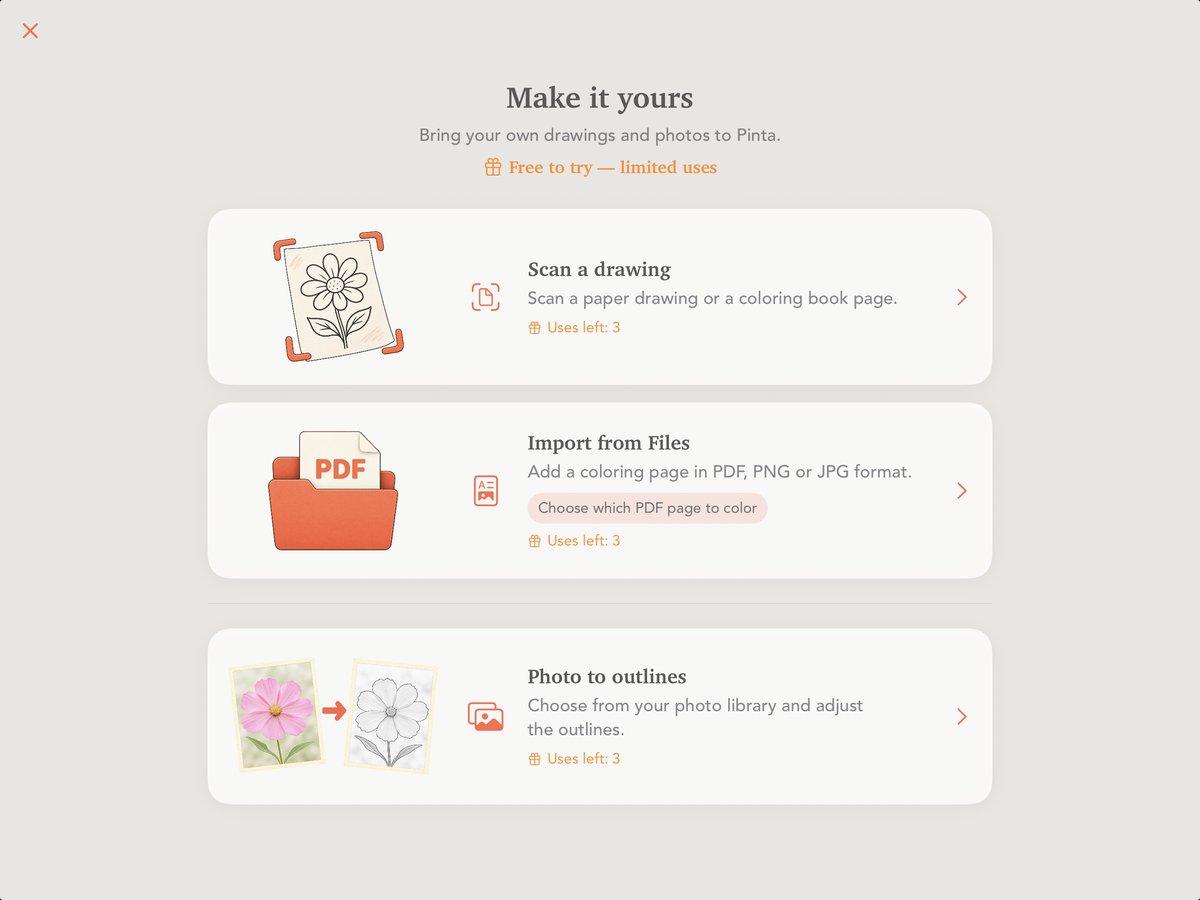
2. Choose your PDF
The file picker opens. Browse to the folder where you saved your coloring pages, then tap the PDF to open it.
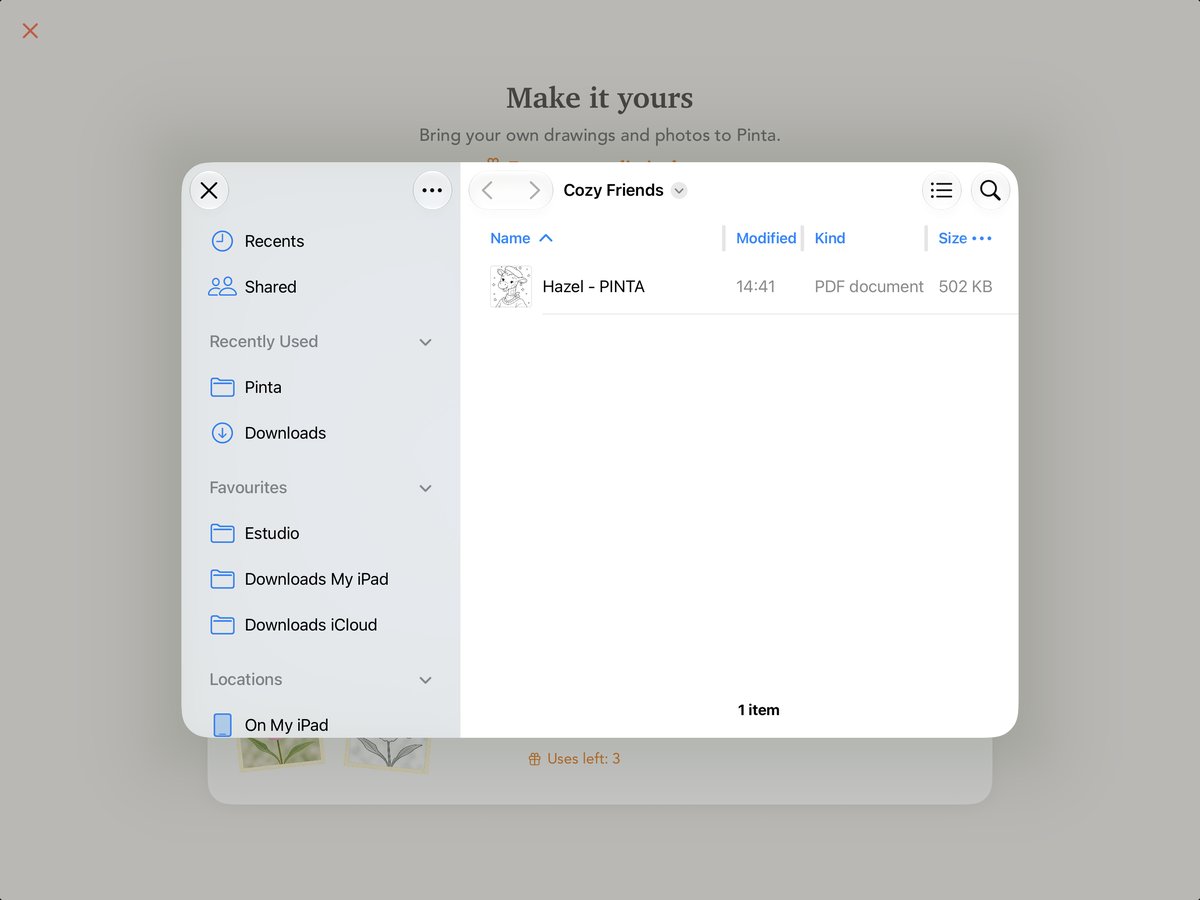
3. Pick a page to color
If your PDF has more than one page, Pinta shows them as thumbnails. Tap the illustration you’d like to color.
In this example, there are six pages to choose from. We’re starting with page one, Hazel’s “Meet Hazel” presentation page.
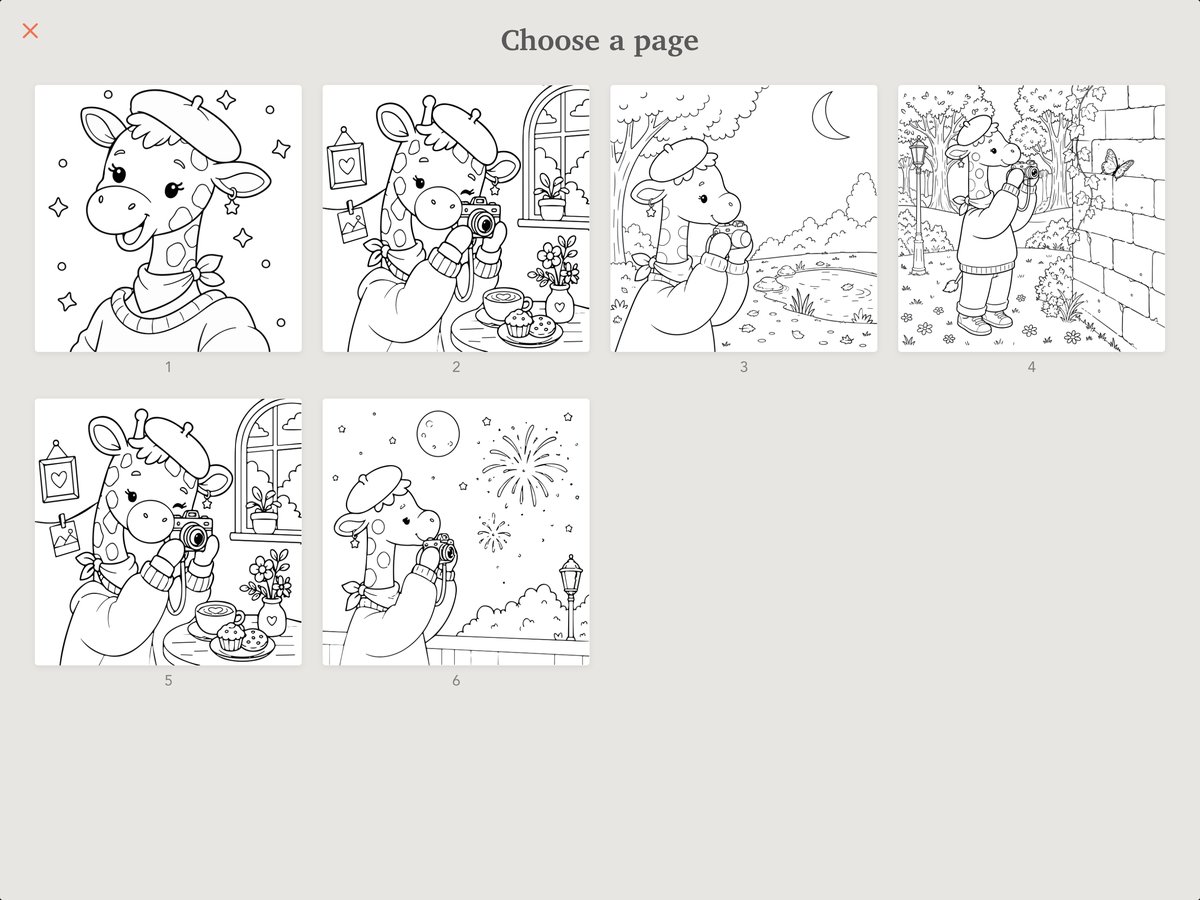
4. Use it as your template
Check the preview, then tap Use Template to open the page for coloring.

5. Start coloring
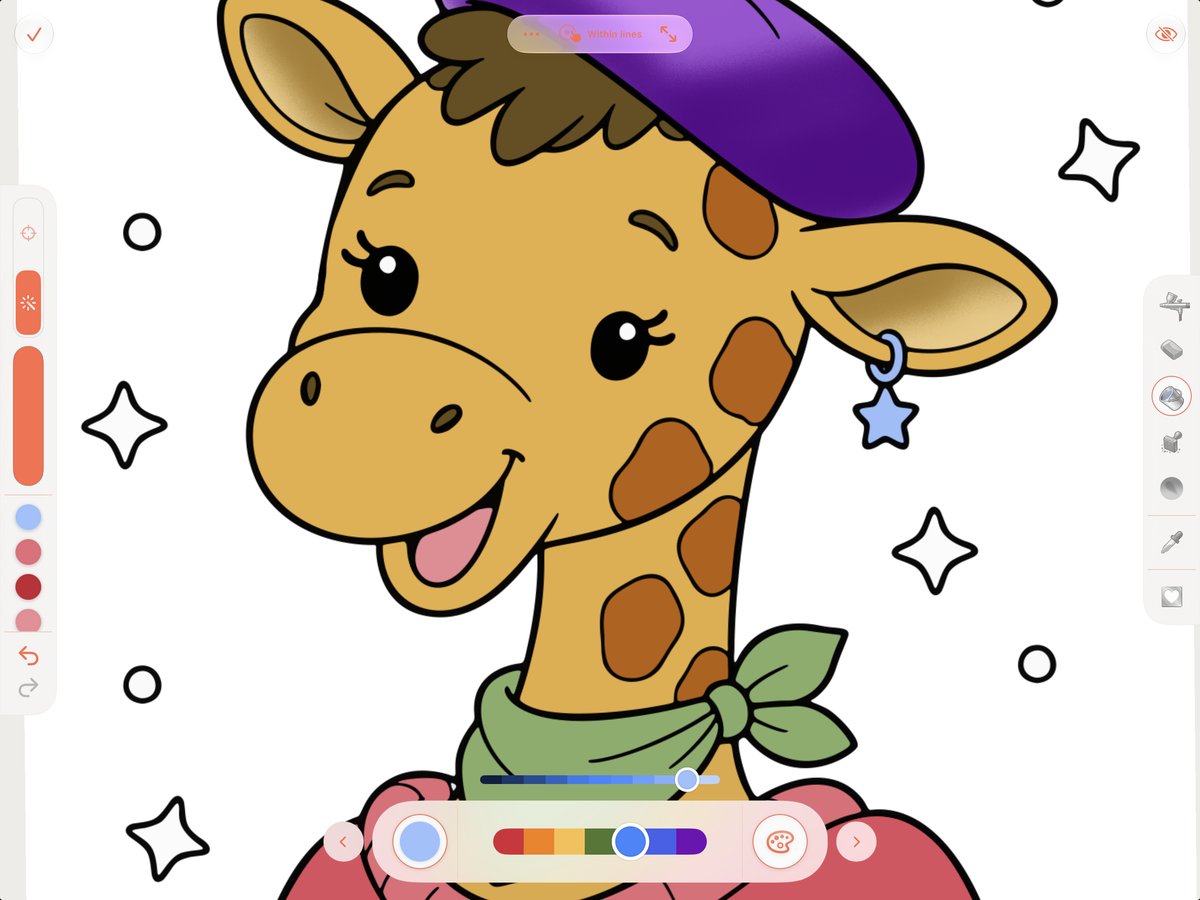
Your page opens in Pinta’s coloring editor. Choose a color and a tool, then make your first mark or fill.
Try a few broad fills to set the colors, then zoom in for the details. You can keep the result simple or spend time exploring different brushes and gradients—the imported page is yours to color in your own style.

Importing a PNG, JPG, or HEIC image
Start in the same place: Import Template → Import from Files. Choose your coloring page image, check the preview, and tap Use Template. There’s no PDF page selection step, so you can go straight to coloring.
Let's color
Importing arrives on October 25 with Pinta 1.2.0 for iOS and Android. Pick a digital coloring page from your collection and have it ready for your first session.